Display modes: List, Grid, Document, Tree
Four buttons on the bottom-right switch how folders and files are drawn:
-
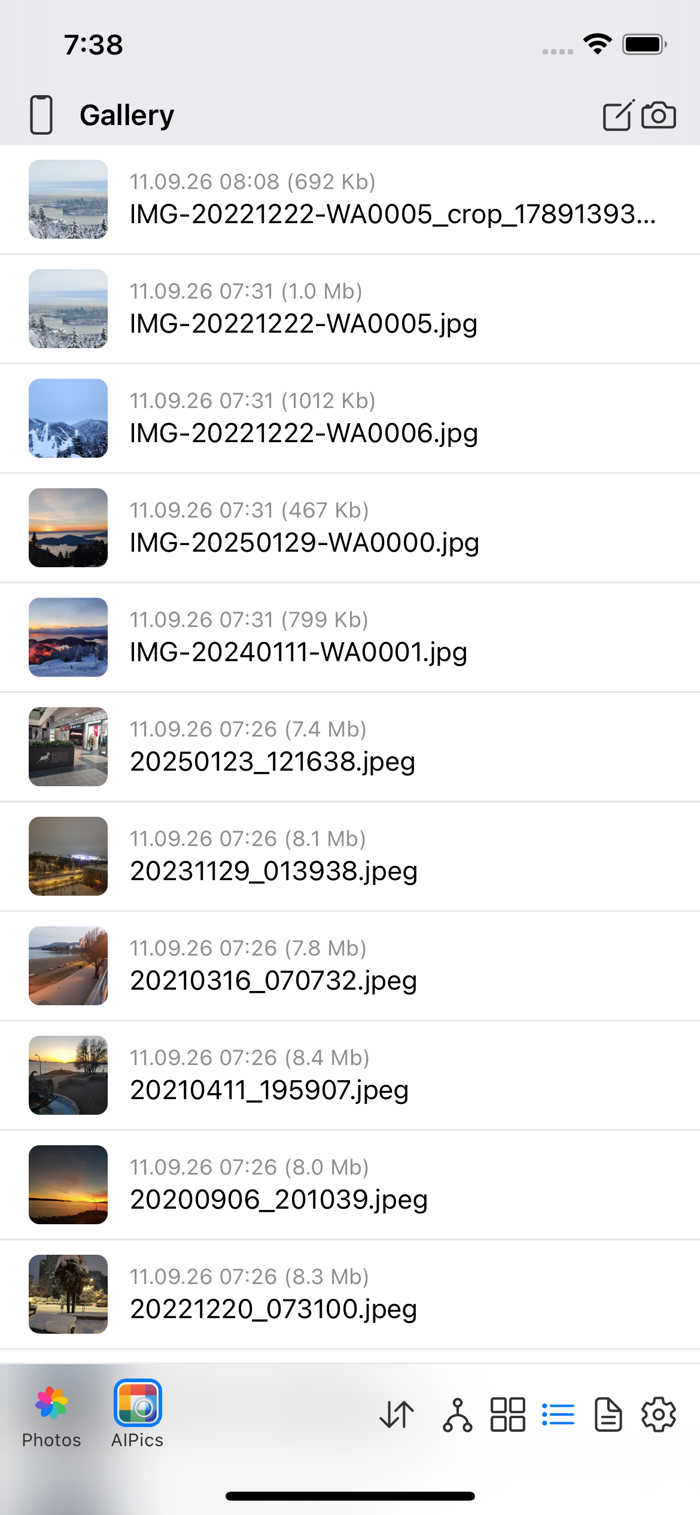
List — one row per item: a small thumbnail/icon, the name, and (for files) the date, time, and size.
-
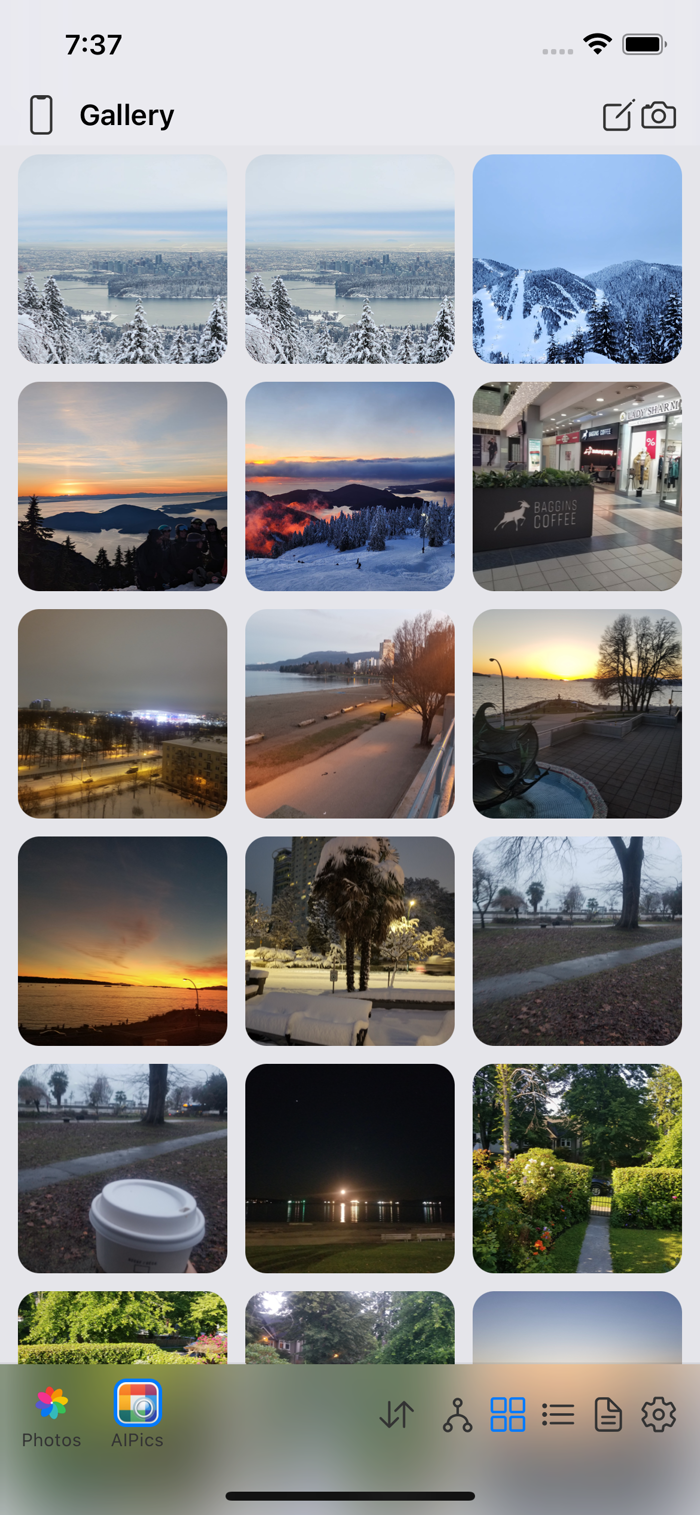
Grid — square tiles. A folder tile shows a mosaic built from up to 4 photos inside it (where the app doesn't have to make an extra network request to build it); a file tile shows the photo itself. For a video, Local's own Gallery/Albums show a real preview frame with a play icon over it; everywhere else (other repositories, and the folder tree even within Local) just shows a plain video icon instead. Names only appear once you switch into Edit mode.
-
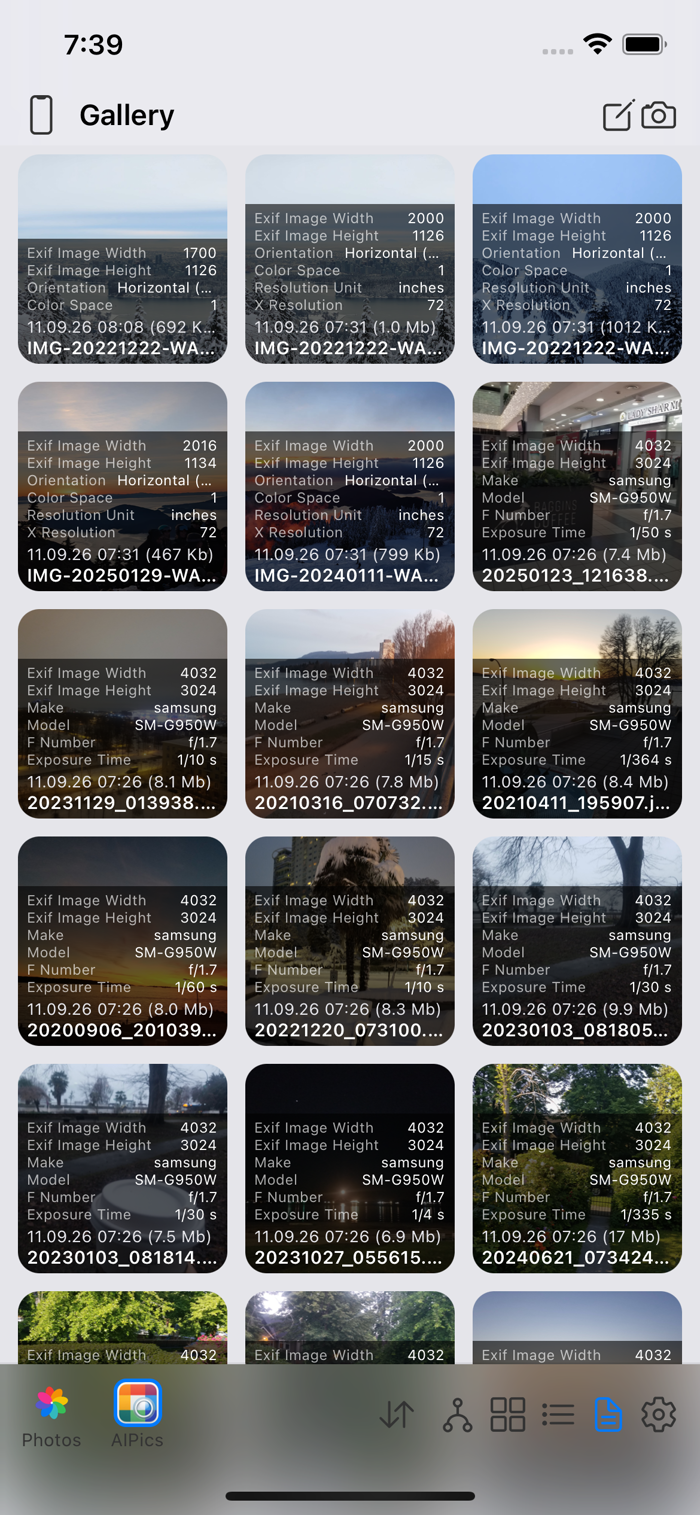
Document — the same tiles as Grid, but with an overlay showing more detail: item count and total size for folders, or date/time/size for files.
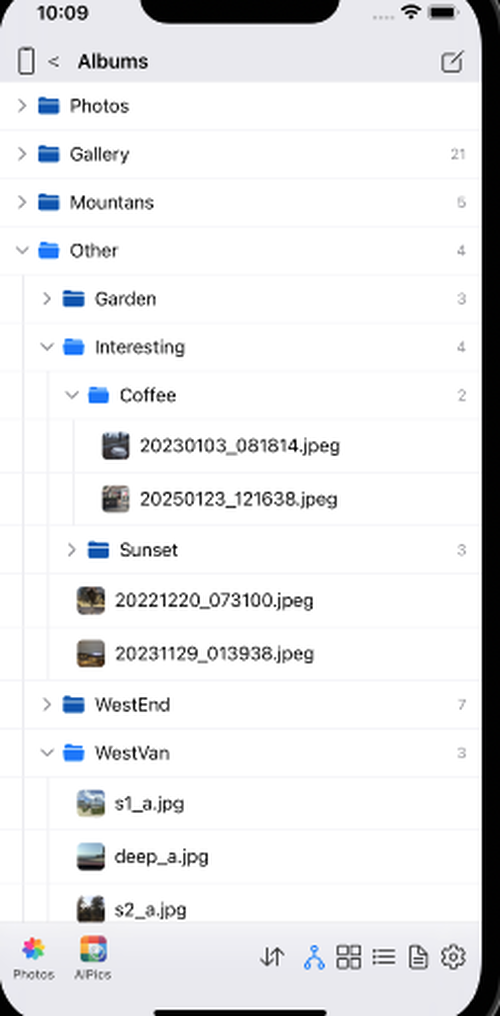
Tree, leftmost of the four, jumps to the root of your Albums and shows them as an expandable outline, like a file manager, with a chevron next to each folder to expand or collapse it, and thin vertical guide lines showing nesting depth — it doesn't remember whatever view you had open last. Grid/List/Document don't apply inside the tree; it always looks the same. Tapping Grid, List, or Document while looking at the tree switches you out of it into that view. Right at the top, above your real folders, Local also shows a Photos row — not a real folder (can't be renamed or dragged), but you can expand it to peek at your Photos library right there: thumbnails, tap one to view (viewing only — deleting or cropping from here isn't offered, use the Photos tab from Gallery and Albums for that). Tapping the row itself instead of the chevron jumps straight to that tab.
Zooming the grid: pinch with two fingers on any Grid/Document screen to change the number of columns, from 2 up to 6 (starting at 3).