View / Edit / Select modes
Every folder screen (Local, Desktop, and SMB — see the notes below for SMB and Photos) works in one of three modes, switched by icons in the top-right of the header:
-
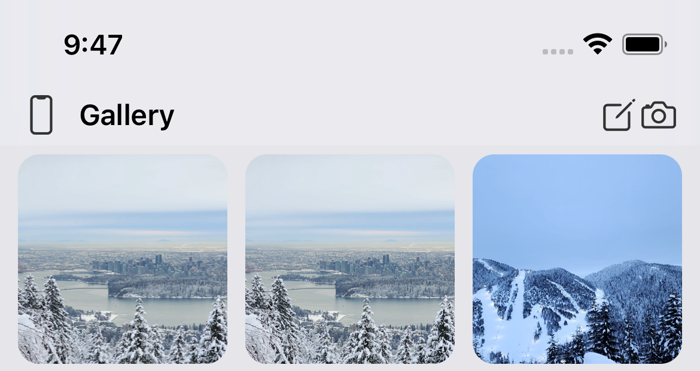
View (the default) — nothing is editable. Tapping a folder opens it, tapping a photo opens the viewer. Only a pencil icon is shown.
-
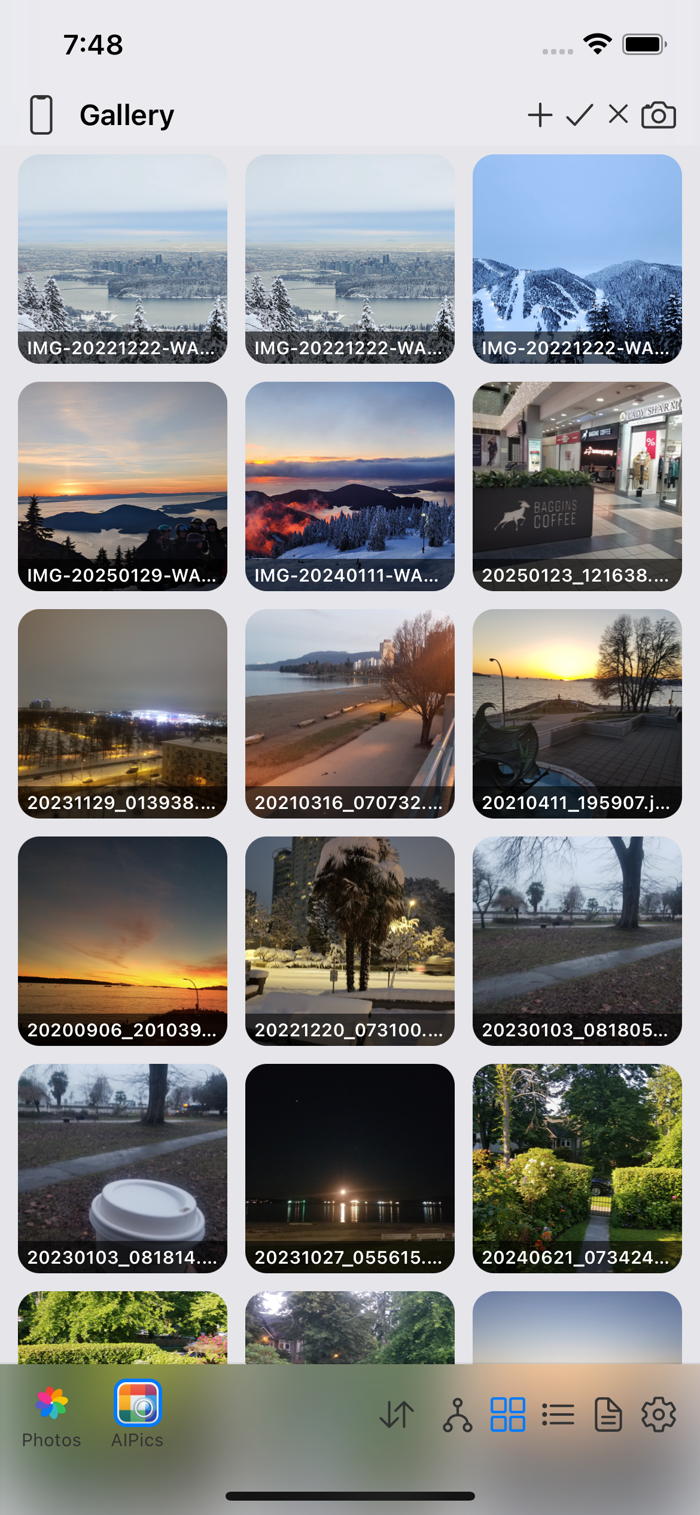
Edit — tap the pencil to get here. A row of icons appears: + (Add), ✓ (Select), ✕ (Cancel), and, if you've copied or cut something, a Paste icon too. While in Edit mode, tapping a folder's or file's name renames it; tapping anywhere else still navigates as usual. You can also drag items into other folders here (see Selecting things and dragging them into folders).
-
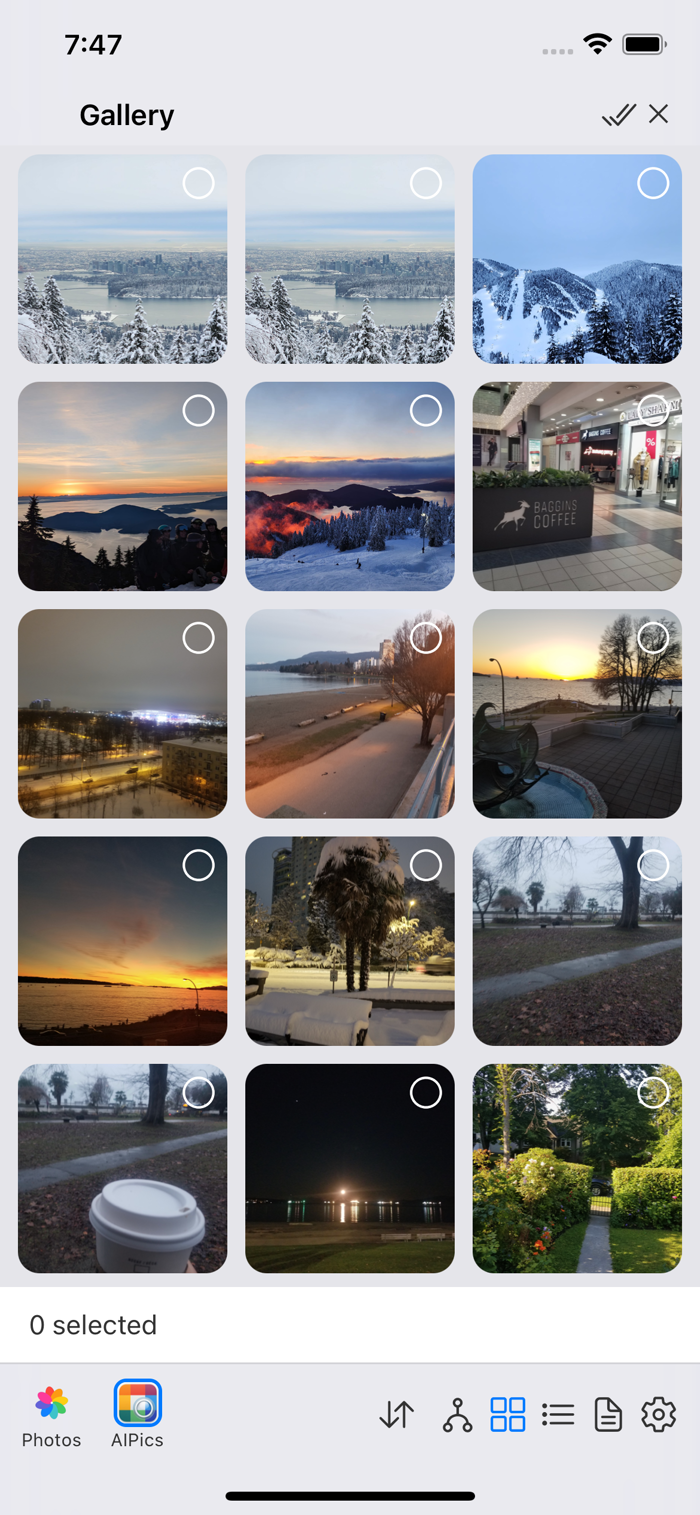
Select — tap the ✓ from Edit mode. A checkbox appears on every item. Tapping an item toggles its checkbox instead of opening it. The header now shows select-all, Export, Copy, Cut, Delete, and Cancel — each only once something is actually checked.
Two things behave a little differently:
- SMB doesn't have a separate collapsed "View" state — its edit controls are visible right away.
- Photos has no Edit mode at all (nothing there can be renamed or reorganized) — only View and Select, and Select shows a download-to-Local button and a Delete button instead of the usual Export/Copy/Cut set.