Adding photos
Tap the + icon in Edit mode to open the add-content menu. Under "Add media" you'll find:
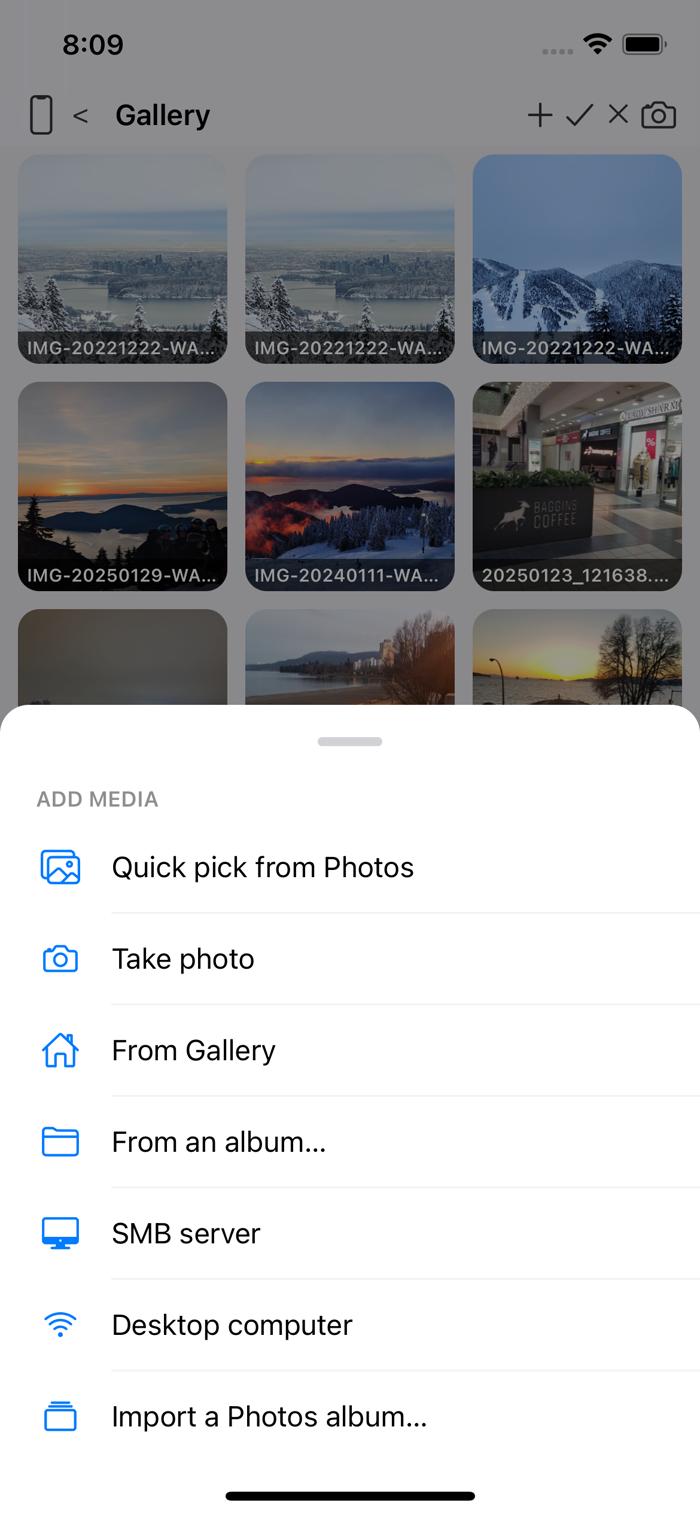
- Quick pick from Photos — the standard system picker, lets you grab several photos/videos from your phone's library at once. The first time (unless you've already told it not to ask again — see Settings: Demo, Free and Plus), it asks whether to copy the photo into AIPPics or just link to it in your Photos library without copying. A linked photo shows a small light-green dot in its top-left corner everywhere it appears, takes up no extra storage, and works normally except that cropping or exporting it briefly pulls a temporary copy from Photos.
- Take photo — opens AIPPics' own full-screen camera view, right inside the app. Unlike the iPhone's regular camera, there's no "Retake / Use Photo" confirmation screen — pressing the shutter saves the shot immediately into whatever folder you're currently in. There's also a dedicated camera icon on the Gallery screen's header itself, for even quicker access to the same thing.
- From Gallery — browse the shared Gallery list and pick photo(s) you already have somewhere else in Local to link into the current folder, without duplicating the file. Opens the same kind of screen as "SMB server"/"Desktop computer" below (select-all, cancel, a ⬇ button to add the selection, "N selected" at the bottom) — you can keep browsing and adding more before leaving with the ✕.
- From an album… — the same, but starting from the Albums tree instead, so you can drill into any folder first. Once you tap select, every row gets a small circle: tap the circle to pick a photo OR a whole folder (a picked folder gets added as a whole subalbum, no need to open it first), tap anywhere else on the row to keep browsing — a folder tap there still drills in, a photo tap still opens its preview.
- SMB server / Desktop computer — jump over to that repository to pick a file to bring in.
- Import a Photos album… — jump to the Photos repository to pick an album or individual photos to import (see The Photos repository). Asks the same copy-or-link question as "Quick pick" above, once for the whole batch.
Under "Albums" (only shown where it makes sense):
- Create new album — a new, empty album right here.
- Attach existing album… — reuse an album that already exists somewhere else in your hierarchy, adding it here too, without duplicating anything (this is what lets the same album live in more than one place, mentioned in The four repositories).
On Desktop and SMB, tapping a photo outside Select mode normally just opens the viewer — it does not import it. The one exception is a file shown inline inside the tree view, which imports immediately on tap, since those don't have their own select checkboxes.