Cropping a photo
Open a photo, switch to Edit mode in its viewer, and tap the crop icon. A rectangular frame appears over the photo with a grab handle at each corner.
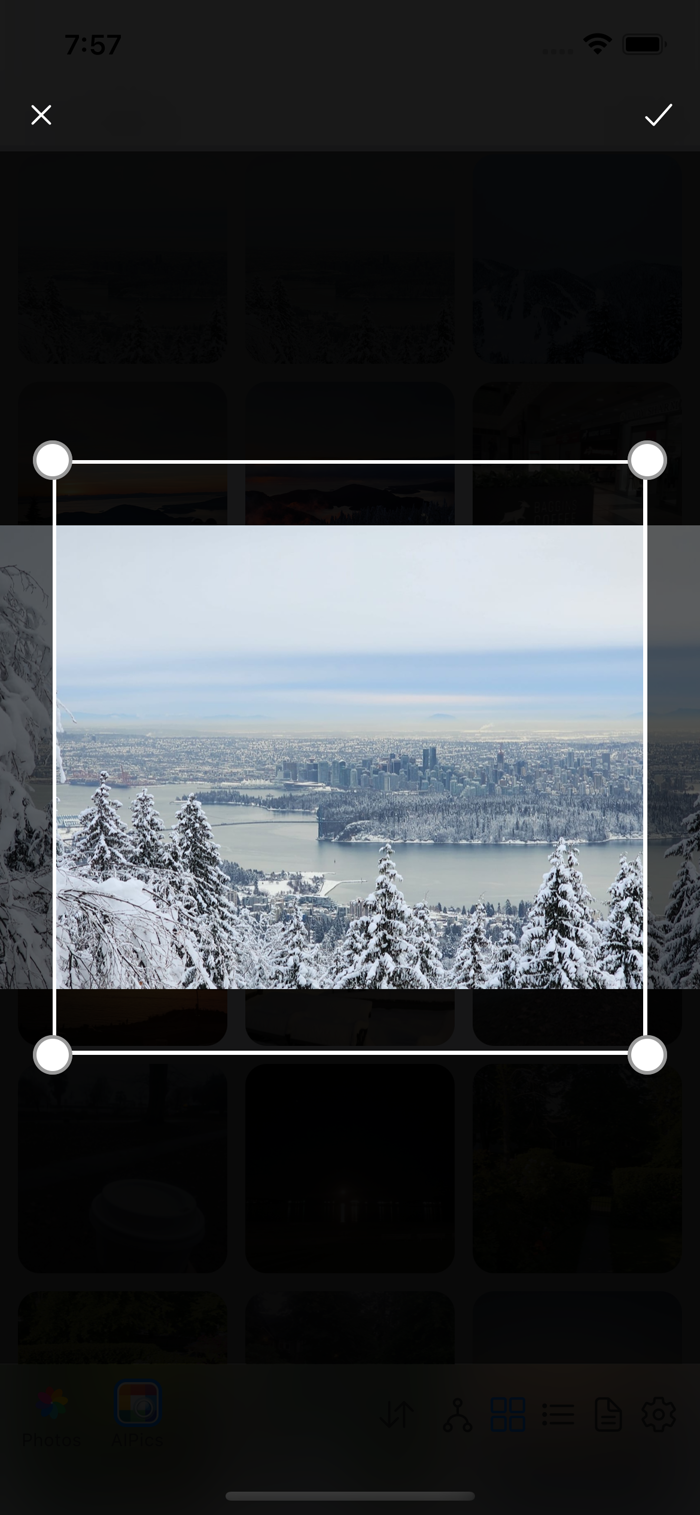
There's no separate toggle between "move the photo" and "resize the frame" — AIPPics figures out what you mean from where your finger lands:
- Touch near one of the four corners → you're resizing the frame.
- Touch anywhere else (or add a second finger) → you're panning/zooming the photo underneath the frame, same as regular viewing.
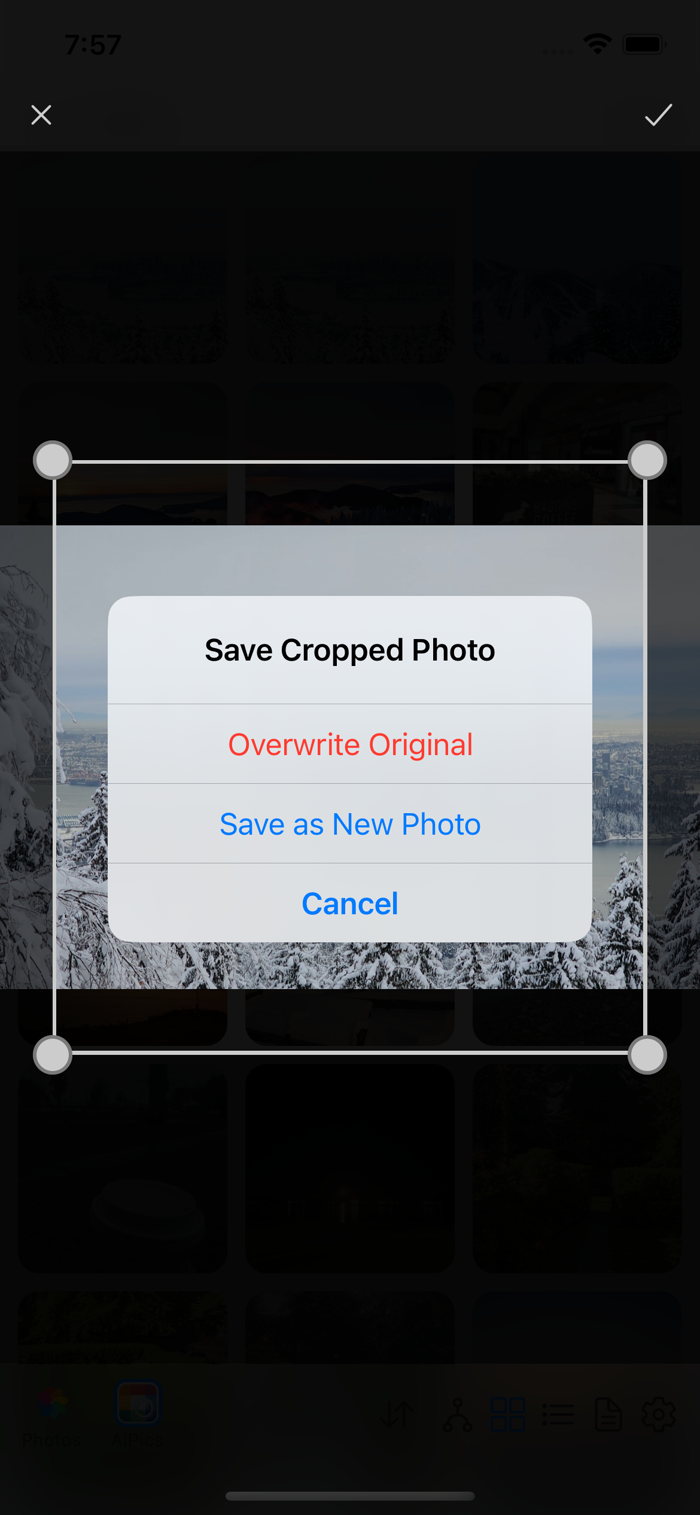
When you're happy with the crop, tap the checkmark. You'll be asked to choose:
- Overwrite Original — replaces the photo with the cropped result.
- Save as New Photo — keeps the original untouched and saves the crop as a separate new photo.
- Cancel.
This works the same way across Local, Desktop, and SMB.