The full-screen photo/video viewer
Tap any photo or video (outside Select mode) to open it full-screen — video plays right there, with the normal play/pause/scrub controls, in every repository including from the folder tree. (One narrow exception: inside Local's "Photos" row at the top of the tree — a read-only peek at your Photos library, see Display modes — tapping a video specifically does nothing; a photo in that same row still opens fine.) On a Desktop server, seeking/scrubbing a video may not work reliably yet.
For a photo, you can pinch to zoom in (up to 4x) and drag to pan around while zoomed in; zooming back out snaps the image back to the center. A plain tap closes the viewer, but only while you're in its View mode — see below.
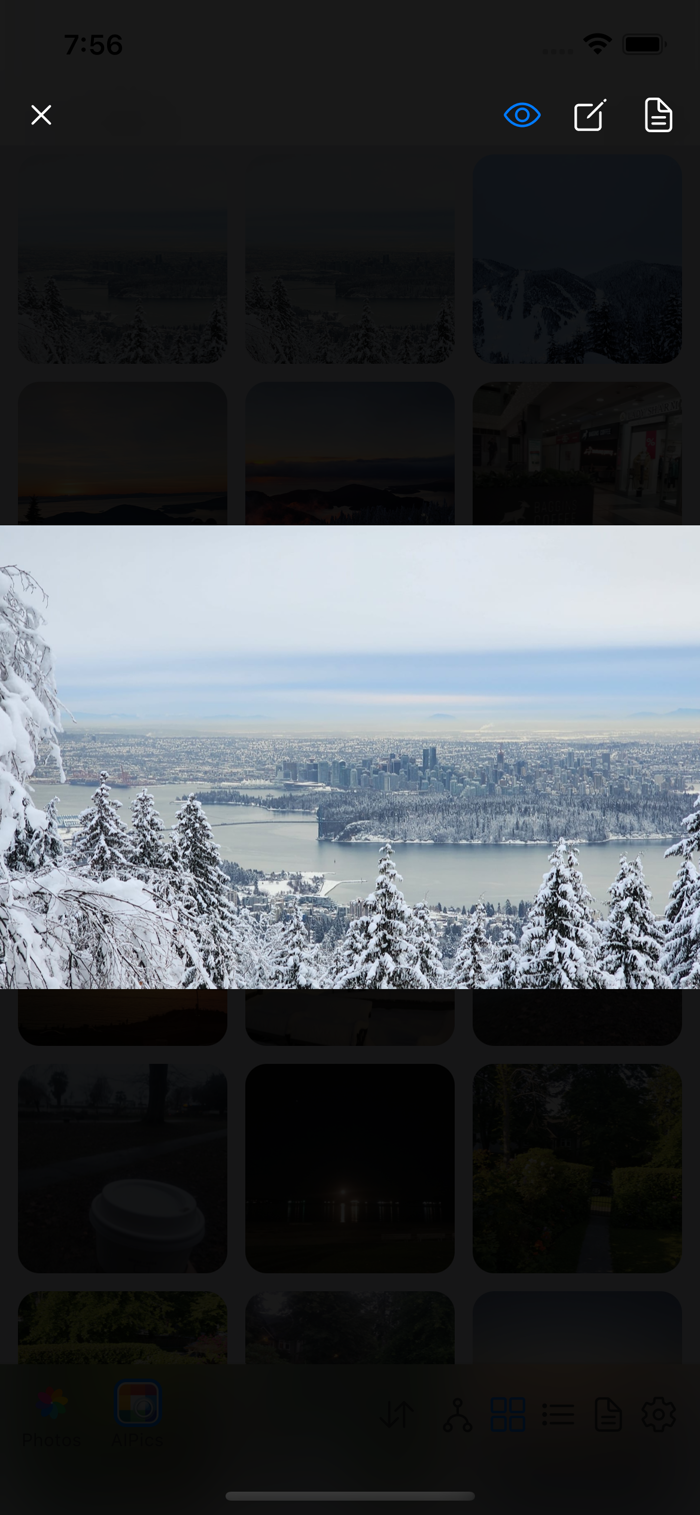
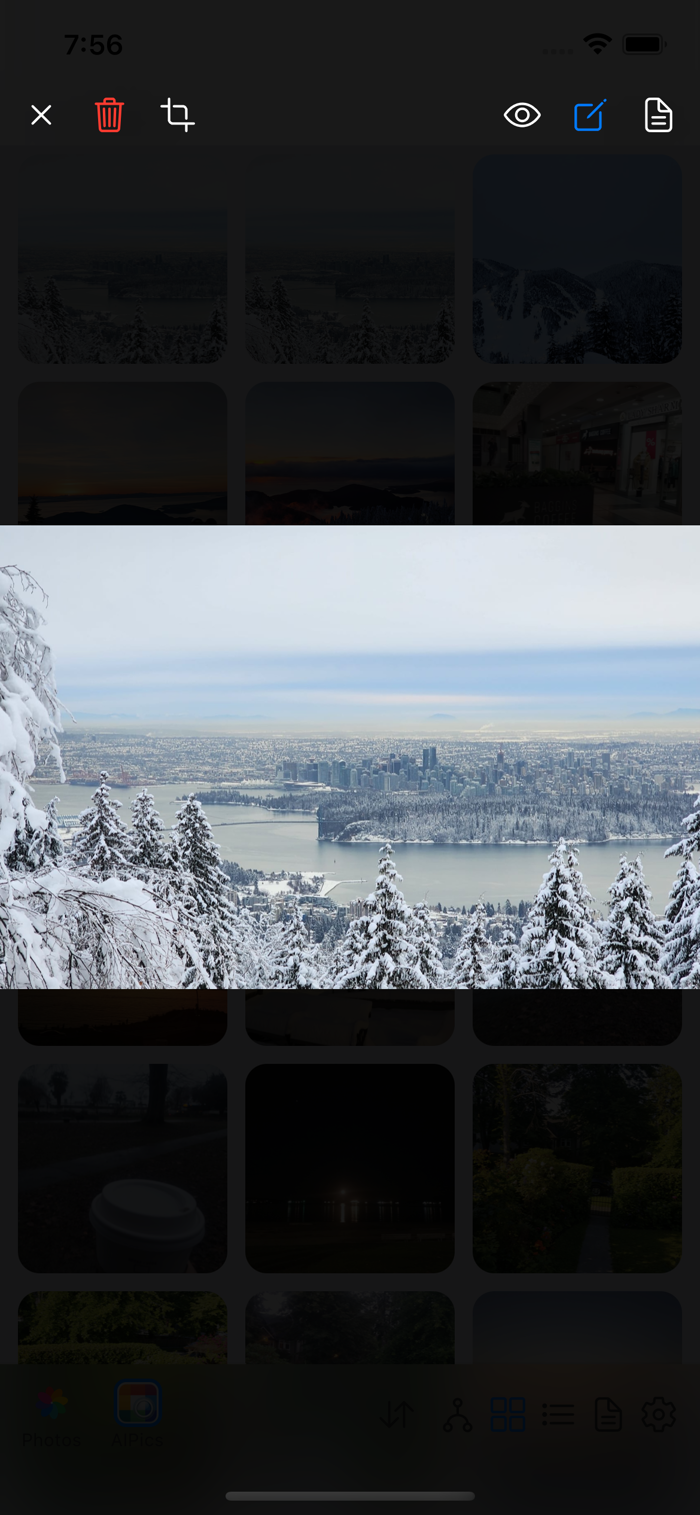
Three icons in the header switch view modes:
-
View (eye icon, default) — just the zoom/pan/tap-to-close gesture above for a photo; a video shows its own player controls instead.
-
Edit (pencil icon) — adds a trash icon (delete this photo/video) and, for a photo, if the repository supports it, a crop icon (see Cropping a photo). Photos doesn't support cropping, so there's no crop icon there; video never gets one anywhere, since cropping doesn't apply to it.
-
Document (document icon) — shows every bit of technical information embedded in the photo file (camera model, lens, exposure settings, GPS location, capture date, and so on, whatever the file actually has), plus its name, date, and size, scrolling if there's a lot of it.